

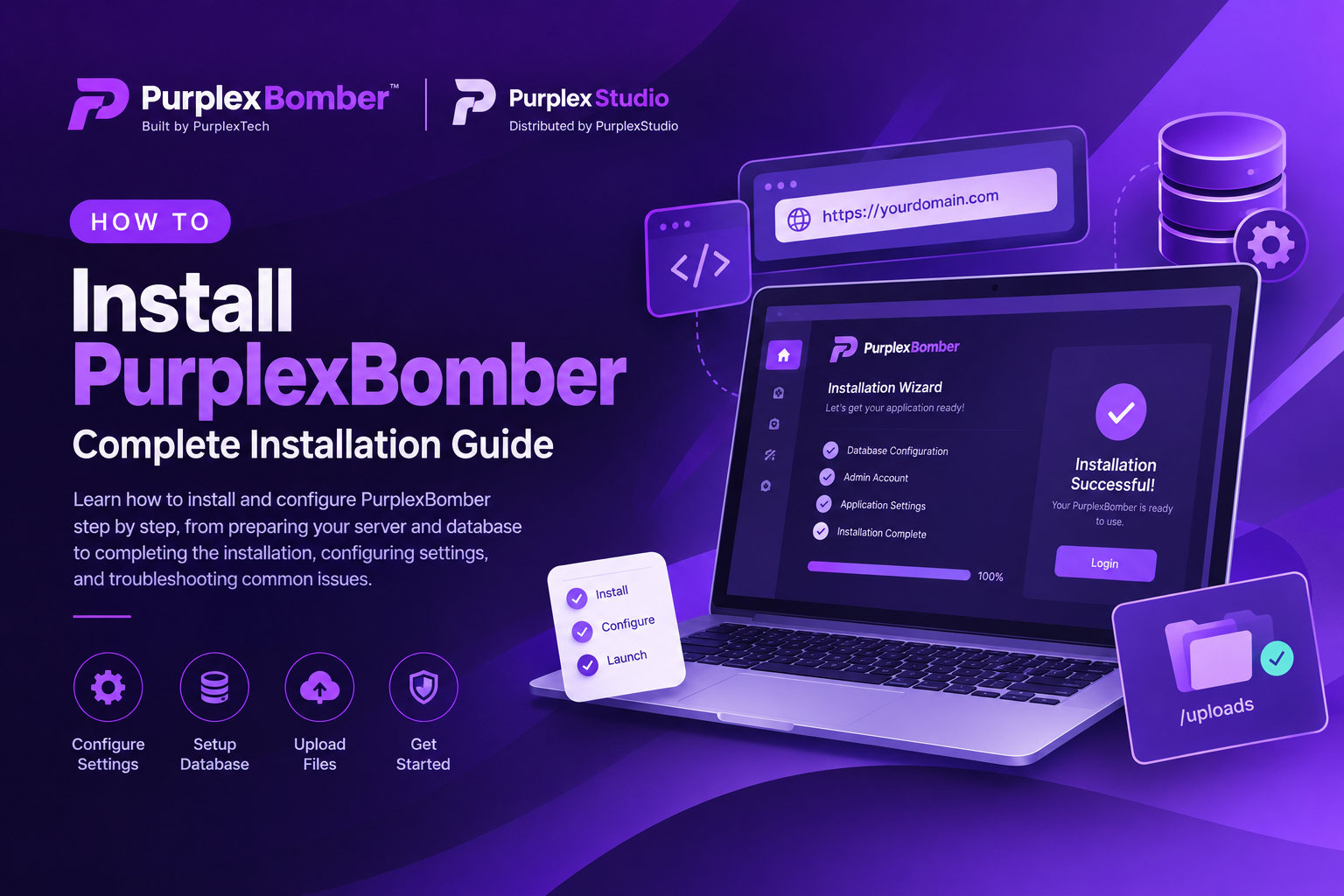
Learn how to install and configure PurplexBomber step by step, from preparing your server and database to completing the installation, configuring settings, and troubleshooting common issues. Built by PurplexTech and distributed by PurplexStudio.
How to Install PurplexBomber: Complete Installation Guide
Built by PurplexTech | Distributed by PurplexStudio
Table of contents [Show]
- Short Description
- Introduction
- Step 1: Configure config.php
- Step 2: Upload PurplexBomber to Your Server
- Step 3: Configure the Uploads Directory Permissions
- Step 4: Complete the Installation
- Step 5: Configure Application Settings and Required Integrations
- Step 6: Verify Your Installation
- Congratulations! What's Next?
- Troubleshooting & Support
Short Description
Learn how to install and configure PurplexBomber step by step, from preparing your server and database to completing the installation, configuring settings, and troubleshooting common issues. Built by PurplexTech and distributed by PurplexStudio.
Introduction
Welcome to the official PurplexBomber installation guide!
PurplexBomber is a software product built by PurplexTech and distributed through PurplexStudio. This guide walks you through the installation process, from configuring your application files and preparing your database to completing the setup and verifying that everything works correctly.
Whether you are installing PurplexBomber on shared hosting, a VPS, or another compatible server environment, following the steps in this guide will help you work through the installation process in an organized manner.
Before getting started, make sure you have downloaded the PurplexBomber package provided with your purchase through PurplexStudio. You should also have access to your hosting control panel or server and the permissions required to create and configure a MySQL database.
Let's get started!
Step 1: Configure config.php
The first step is to configure PurplexBomber with your website URL and database credentials.
Download the PurplexBomber package provided with your purchase through PurplexStudio.
Extract the downloaded ZIP archive on your computer.
Open the extracted application directory and navigate to the /includes/ folder.
Locate the config.php file and open it using a text editor or code editor.
Find the APP_PATH setting and configure it with the full URL where PurplexBomber will be accessible.
For example, if your installation will be available at https://example.com/ , configure APP_PATH to use that URL. If you intend to install the application in a subdirectory, include that directory in the URL.
Locate the MySQL database configuration and enter your database credentials.
You will typically need the following information:
Database name: The name of the MySQL database created for PurplexBomber.
Database username: The database user assigned to the database.
Database password: The password associated with the database user.
Database host: Usually localhost , although your hosting provider may specify a different value.
Save your changes to config.php .
Important: Replace all example values with your actual server details. Ensure that the database exists, the database user has the required privileges, and sensitive configuration files are protected against unauthorized access.
Step 2: Upload PurplexBomber to Your Server
After configuring the application, upload PurplexBomber to your hosting environment.
Sign in to your hosting control panel, such as cPanel, or connect to your server using an FTP/SFTP client.
Navigate to the document root of the domain or subdomain where you want to install PurplexBomber. On many cPanel installations, this is the public_html/ directory for the primary domain.
Upload the PurplexBomber application files and folders to the selected directory.
If you uploaded the ZIP archive, extract it on the server.
Confirm that the application files are located directly in the intended installation directory rather than inside an unintended additional folder.
Verify that the URL configured in APP_PATH matches the actual installation location.
If your hosting environment supports SSL, ensure that HTTPS is enabled and working correctly.
Once the upload is complete, confirm that the main application files and the /includes/ directory are present.
Installation tip: If you are installing PurplexBomber alongside another website, use a dedicated directory or subdomain to avoid overwriting existing application files.
PurplexBomber may require write access to its /uploads/ directory for file-related functionality.
Open your hosting file manager or connect to your server using FTP/SFTP.
Navigate to the PurplexBomber installation directory.
Locate the /uploads/ folder.
Check the current permissions and confirm that the web server can write to the directory.
If uploads fail, review the directory ownership and permissions and adjust them according to your hosting environment.
Security recommendation: Avoid setting the uploads directory to 777 on a production server unless there is a specific, understood reason and no safer alternative. Start with the permissions recommended by your hosting provider, commonly 755 or 775 , and configure ownership appropriately.
If file uploads still fail, check the PHP upload limits, available disk space, directory ownership, and any hosting restrictions. Where supported, prevent uploaded files from being executed as server-side scripts.
Step 4: Complete the Installation
Once the configuration and upload steps are complete, open PurplexBomber in your browser.
Open your preferred web browser.
Navigate to the domain or URL where you uploaded PurplexBomber.
Follow the on-screen installation instructions if your application package includes a browser-based installer.
Enter the requested administrator account information, which may include your email address and a secure password.
Provide any additional database information requested by the installer, if applicable.
Review the information and proceed with the installation.
Wait for the installation process to complete and follow any additional instructions displayed on the screen.
If the installer reports a database connection error, return to config.php and verify the database credentials and privileges.
If the installation page does not load, check the domain configuration, application file locations, PHP error logs, and server compatibility.
Note: The available fields and installation screens may vary depending on the version of PurplexBomber supplied with your purchase.
Step 5: Configure Application Settings and Required Integrations
After completing the installation, sign in to the PurplexBomber administration area and review the available settings.
The configuration required will depend on the features included in your version of PurplexBomber.
5.1 Review the Application Configuration
Review the general settings and confirm that the application URL, administrator account, and other essential configuration values are correct.
Ensure that your installation uses the intended production domain and that the application can communicate with its database.
5.2 Configure Email Delivery
If your version of PurplexBomber supports email delivery, configure the appropriate email service using the settings available in the application.
If SMTP is supported, you may need to provide:
SMTP server address.
SMTP port.
Encryption method.
SMTP username and password.
Sender email address and sender name.
Save the settings and perform a test to confirm that email delivery is working correctly.
If your chosen email provider requires domain verification or additional authentication, complete those steps with the provider before sending messages.
5.3 Configure External Services
If PurplexBomber requires third-party services, configure them using the relevant settings in the application.
Follow the official documentation for each service when creating API credentials or configuring integrations. Grant only the permissions required for the application to operate.
Security recommendation: Never publish private API keys, database credentials, or administrator passwords. Keep sensitive credentials in the appropriate protected configuration or environment settings.
5.4 Configure Scheduled Tasks
If PurplexBomber requires cron jobs or other scheduled tasks, configure them according to the instructions supplied with your application version.
Confirm that the commands use the correct application paths and PHP executable and that the scheduled processes execute successfully.
Do not add scheduled commands that are not documented or required by your version of PurplexBomber.
Step 6: Verify Your Installation
Before using PurplexBomber in production, perform the following checks:
Confirm that the application loads using the correct domain.
Verify that HTTPS works correctly, where configured.
Sign in to the administration area using your administrator credentials.
Confirm that the application can connect to its MySQL database.
Check that application settings can be saved.
Test file uploads if the relevant functionality is available.
Test email delivery if email features are enabled.
Verify required third-party integrations.
Confirm that scheduled tasks work if the application depends on them.
Review directory permissions and ensure sensitive files are protected.
Remove or disable any installation or diagnostic functionality that should not remain publicly accessible.
Once these checks are complete, PurplexBomber should be ready for its intended use.
Congratulations! What's Next?
Congratulations on installing PurplexBomber!
You can now sign in to your administration area and begin configuring the application according to your requirements.
We recommend reviewing the available settings and testing the main features before making the application available to users.
Before going live, remember to:
Create a backup of your application files and database.
Confirm that your website uses HTTPS where available.
Use a strong, unique administrator password.
Review application permissions and security settings.
Test the features and integrations you intend to use.
Keep your application and server environment maintained.
PurplexBomber is built by PurplexTech and distributed through PurplexStudio. We recommend keeping this distinction clear when referring to the software, requesting assistance, or sharing the installation guide with other users.
Thank you for choosing PurplexBomber!
Troubleshooting & Support
Encountering an issue during installation or configuration? The following suggestions can help you identify common problems.
Common Installation Issues
1. The website displays a blank page or server error.
Check the PHP error logs, verify that your server meets the application's requirements, and confirm that all application files were uploaded correctly.
2. The application cannot connect to the database.
Verify the database name, username, password, host, and privileges. Ensure that the database exists and that the database user has been assigned the necessary permissions.
3. File uploads are not working.
Check the uploads directory path, ownership, permissions, PHP upload limits, and available disk space.
4. The installation page cannot be accessed.
Confirm that your domain points to the correct document root, the application URL is configured correctly, and the server is running a compatible PHP version.
5. Emails are not being delivered.
Review the email configuration, SMTP credentials, encryption settings, provider sending limits, and any relevant error or bounce logs.
Need Further Assistance?
For installation assistance, technical questions, or troubleshooting support, please visit the PurplexStudio Contact & Support page:
https://purplexstudio.com/contact
When contacting support, include a clear description of the problem, the installation step where it occurred, and any relevant error messages. Providing your PHP version, hosting environment, and other non-sensitive technical details can also help with troubleshooting.
For your security, never include your administrator password, database password, private API keys, or other confidential credentials in a support request.
PurplexStudio is the distribution platform for PurplexBomber, built by PurplexTech. If you need assistance with your distributed copy, use the support contact page above.
Built by PurplexTech. Distributed by PurplexStudio.
Thank you for choosing PurplexBomber.